
Special Offer rules let you create promotions that activate when customers add a specific number of products to their cart. These rules are commonly used for deals like buy two, get one free, 2-for-1 offers, or similar quantity-based discounts.
They’re especially useful when you want to encourage customers to add more items without relying on coupon codes.
How to create a Special Offer rule #
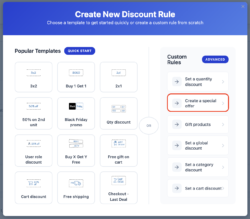
To get started, go to Dynamic Rules in the plugin dashboard and click Add Rule. From here, you can either select a ready-made template (such as 3×2 or 2×1) or choose the Special Offer rule type to build a custom promotion.
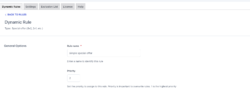
Once selected, give the rule a clear name so it’s easy to identify later. You can also assign a priority, which determines how this rule behaves if multiple discounts are active at the same time.
Choosing which products trigger the offer #
The trigger settings define which products activate the promotion.
You can apply the rule to:
-
all products in the store
-
specific products only
-
products from selected categories
-
products with specific tags
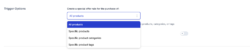
If needed, you can exclude individual products, categories, or tags. This is useful when certain items shouldn’t be part of promotional campaigns.
Configuring the offer logic #
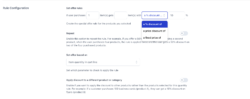
This is where you decide how the promotion actually works.
You can define:
-
how many items must be added to the cart
-
how many items receive the discount
-
the type of discount (percentage, fixed amount, or fixed price)
Repeating the offer #
If the repeat rule option is enabled, the promotion can be applied multiple times in the same cart.
For example, if the rule applies a discount to the second item:
-
adding two products applies the discount once
-
adding four products applies it twice
This is useful for bulk or multi-pack offers.
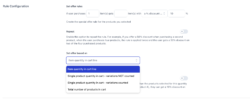
How product quantities are calculated #
You can control how quantities are counted when the rule is evaluated. Available options include:
-
counting each cart line separately
-
grouping variations of the same product together
-
counting each variation individually
-
using the total number of products in the cart
This flexibility allows you to match the rule to different sales strategies, whether you’re selling simple products, variations, or mixed bundles.
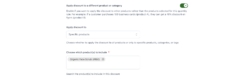
Applying the discount to different products #
In some cases, the product that triggers the rule may not be the one that receives the discount.
For example, purchasing Product A could unlock a discount on Product B.
You can choose to apply the discount to:
-
all products
-
selected products
-
specific categories
-
specific tags
Additional exclusions can be applied if needed.
Controlling who can use the offer #
Special Offer rules can be limited to specific users or user roles.
You can choose to:
-
apply the offer to all customers
-
restrict it to selected user roles
-
exclude specific users or roles
This is helpful for running member-only deals or loyalty-based promotions.

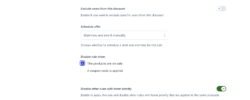
Scheduling and rule restrictions #
You can run Special Offer rules manually or schedule them to start and end automatically.
Additional restrictions allow you to:
-
disable the offer for products already on sale
-
prevent the rule from applying when a coupon is used
-
stop lower-priority rules from stacking with this one
These options help you avoid unintended discount combinations.
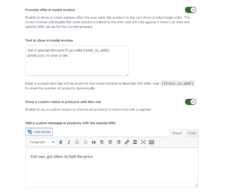
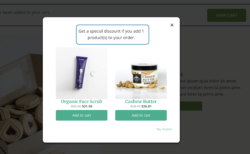
Promoting the offer with a modal #
When the discount applies to different products, you can promote the offer using a modal window that appears when a customer adds a triggering product to the cart.
The modal can explain the offer and allow customers to add the discounted product directly from the popup.
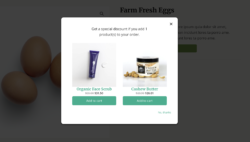
Quantity limits are respected automatically, and variable products are supported.
Showing messages on product pages #
You can also display custom messages on:
-
products that trigger the offer
-
products that receive the discount
These messages help customers understand the promotion before they reach the cart.
Settings → Product page settings, otherwise these notices won’t appear.


